


If you’re trying to set up your Verizon email and nothing seems to work, you’re not alone.
Verizon retired its email service years ago and quietly moved everyone to AOL’s servers. The problem? Most people never got a clear memo about it.
So now, every time you get a new phone, switch laptops, or update Outlook, the old settings fail and you’re left wondering if your account even works anymore.
The good news: your @verizon.net email address is still fully active.
You can absolutely keep using it with Outlook, Gmail, iPhone, Android, or any other email app. You just need the updated server settings, which is exactly what this guide gives you.
I’ve gone through every official source, tested the server connections myself, and verified that the settings in this guide actually work as of April 2026.
Here’s everything you need to get your @verizon.net email working on any device.
Verizon Email Settings – TOC
- TL;DR: What Are the Correct Verizon Email Settings?
- Verizon Email Server Settings (IMAP, POP3 & SMTP)
- How to Generate an App Password for Verizon Email
- How to Set Up Verizon Email on Different Devices
- 6 Common Verizon Email Problems and How to Fix Them
- Can You Still Use Verizon Email Through Webmail?
- What Happened to Verizon Email?
- Verizon Email Settings vs. AOL Email Settings: Are They Different?
- Your Email Is Set Up. But Are Your Emails Getting Replies?
- Frequently Asked Questions
TL;DR: What Are the Correct Verizon Email Settings?
If you’re in a hurry, here’s everything you need in one place.
These Verizon email settings are verified and working as of April 2026.
| Protocol | Server | Port | Encryption |
|---|---|---|---|
| IMAP (Incoming) | imap.aol.com | 993 | SSL |
| POP3 (Incoming) | pop.verizon.net | 995 | SSL |
| SMTP (Outgoing) | smtp.verizon.net | 465 | SSL |
Quick facts you need to know:
- Username: Your full email address, including @verizon.net
- Password: You need an app password, not your regular password (steps to generate one are below)
- If port 465 is blocked: Use port 587 with STARTTLS encryption instead
- Webmail shortcut: Skip all of this and log in directly at mail.aol.com with your @verizon.net address
- Why AOL servers? Verizon moved all email accounts to AOL in 2017. Your @verizon.net address still works, it just runs on AOL/Yahoo servers now
If you need the full device-by-device setup, keep reading.
Verizon Email Server Settings (IMAP, POP3 & SMTP)
Let’s break down each setting in detail so you know exactly what to enter and why.
- IMAP Settings (Recommended for Most People)
- POP3 Settings (Use Only If IMAP Isn’t Available)
- SMTP Settings (Outgoing Mail)
1. IMAP Settings (Recommended for Most People)
IMAP keeps your email synced across all your devices. Read an email on your phone, and it shows as read on your laptop too. This is what you should use unless you have a specific reason not to.
| Setting | Value |
|---|---|
| Incoming Server | imap.aol.com |
| Port | 993 |
| Encryption | SSL |
| Username | Your full email (example@verizon.net) |
| Password | Your app password (not your regular password) |
2. POP3 Settings (Use Only If IMAP Isn’t Available)
POP3 downloads emails to one device and doesn’t sync across others. The only reason to use this is if your email app doesn’t support IMAP. For example, Gmail’s “Check mail from other accounts” feature only works with POP.
| Setting | Value |
|---|---|
| Incoming Server | pop.verizon.net |
| Port | 995 |
| Encryption | SSL |
| Username | Your full email (example@verizon.net) |
| Password | Your app password |
3. SMTP Settings (Outgoing Mail)
These settings let you send emails from your @verizon.net address. Without them, you can receive mail but can’t reply or compose new messages.
| Setting | Value |
|---|---|
| Outgoing Server | smtp.verizon.net |
| Port | 465 |
| Encryption | SSL |
| Authentication | Required (use same username and app password) |
Important: You must turn on “SMTP authentication” or “My outgoing server requires authentication” in your email app. If this toggle is off, your emails won’t send.
If port 465 doesn’t work on your network: Some internet providers or corporate firewalls block port 465. In that case, try port 587 with STARTTLS encryption instead. I tested both, and smtp.verizon.net responds on 587 as well. This is a useful fallback that most guides don’t mention.
One more thing you might notice: The incoming server uses an AOL domain (imap.aol.com) while the outgoing server uses a Verizon domain (smtp.verizon.net).
This isn’t a mistake. It’s because of how Verizon’s migration to AOL was set up. Both servers route through the same Yahoo infrastructure behind the scenes, so they work together without any issues.
How to Generate an App Password for Verizon Email
Do this step first, before setting up any device. This is the single biggest reason Verizon email setup fails for people.
Your regular Verizon/AOL password won’t work in most email apps. AOL requires something called an “app password” for third-party email clients like Outlook, iPhone Mail, or Thunderbird.
Think of it as a special one-time password that you generate specifically for each app you want to connect.
Steps to Generate an App Password
- Open your browser and go to the AOL Account Security page
- Sign in with your @verizon.net email address and regular password
- Look for “Generate app password” or “Generate and manage app passwords”
- Click “Get Started”
- Type a name for the app (something like “Outlook” or “iPhone Mail” so you remember what it’s for)
- Click “Generate password”
- You’ll see a one-time password on screen. Copy it immediately or write it down
- Click “Done”
Now use this generated password (not your regular one) when setting up your email on any device below.
A few things to keep in mind:
- Each app password stays active even if you change your main AOL/Verizon password.
- If you want to revoke access for a specific app, delete that app password from the same security page.
- Use a browser where you’ve recently logged into AOL Mail. Incognito or private browser windows sometimes cause issues with generating passwords.
- If you don’t see the “Generate app password” option, make sure two-factor authentication is enabled on your AOL account first.
How to Set Up Verizon Email on Different Devices
You’ve got your settings and your app password ready. Now pick your device below and follow the steps. Each walkthrough uses the verified IMAP settings from above.
- iPhone or iPad
- Android (Gmail App)
- Outlook (Classic / Microsoft 365)
- New Outlook (Windows)
- Mac (Apple Mail)
- Gmail
- Thunderbird
How to Set Up Verizon Email on iPhone or iPad
Setting up Verizon email on iOS is straightforward, but there’s one important thing: don’t pick AOL, Yahoo, or Google from the default account list. You need to select “Other” so you can enter the correct server settings manually.
- Open Settings on your iPhone
- Scroll down and tap Mail
- Tap Accounts, then Add Account
- Tap Other (do not pick Yahoo, AOL, or Google from the list)
- Tap Add Mail Account
- Enter your name, @verizon.net email address, app password, and a description like “Verizon Email”
- Tap Next
- Select IMAP at the top (not POP)
- Under Incoming Mail Server:
- Host Name: imap.aol.com
- Username: your full @verizon.net email
- Password: your app password
- Under Outgoing Mail Server:
- Host Name: smtp.verizon.net
- Username: your full @verizon.net email
- Password: your app password
- Tap Next and wait for verification
- Make sure Mail is toggled on, then tap Save
💡 Tip: If verification fails, double-check that you used the app password and not your regular password. Also confirm you selected IMAP, not POP.
How to Set Up Verizon Email on Android (Gmail App)
Most Android phones use the Gmail app for email, even for non-Gmail accounts. The setup process asks you to pick an account type early on, so make sure you select “Other” and not Google or Yahoo.
- Open the Gmail app
- Tap your profile icon in the top right
- Tap Add another account
- Select Other (not Google, not Yahoo)
- Enter your @verizon.net email address and tap Next
- Select Personal (IMAP) when asked for account type
- Enter your app password and tap Next
- For incoming server settings:
- Server: imap.aol.com
- Port: 993
- Security type: SSL/TLS
- Tap Next
- For outgoing server settings:
- Server: smtp.verizon.net
- Port: 465
- Security type: SSL/TLS
- Require sign-in: Yes
- Tap Next and follow the remaining prompts to finish setup
💡 Tip: If it asks for a username at any point, always enter your full @verizon.net email address. Not just the part before the @.
How to Set Up Verizon Email in Outlook (Classic / Microsoft 365)
If you’re using the traditional desktop version of Outlook that comes with Microsoft 365 or Office, this section is for you. The key here is forcing Outlook to let you enter settings manually, because its auto-detect feature often tries to redirect you to Yahoo (more on that in a moment).
- Open Outlook and click File in the top menu
- Click Add Account
- Enter your @verizon.net email address
- Click Advanced options and check the box that says “Let me set up my account manually”
- Click Connect
- Select IMAP
- Enter the incoming server settings:
- Server: imap.aol.com
- Port: 993
- Encryption: SSL/TLS
- Enter the outgoing server settings:
- Server: smtp.verizon.net
- Port: 465
- Encryption: SSL/TLS
- Click Next
- When prompted for a password, enter your app password
- Click Connect
Outlook will send a test message to confirm everything works. If it succeeds, you’re done.
💡 Tip: If Outlook tries to redirect you to a Yahoo login screen, keep closing it. It does this because it detects the Yahoo servers behind your Verizon email and assumes you have a Yahoo account. Keep hitting the X or “Back” button until you get to the manual setup screen where you can enter the IMAP settings yourself.
How to Set Up Verizon Email in New Outlook (Windows)
Microsoft’s newer Outlook app (the one that’s replacing the classic version on Windows) has been problematic for Verizon email users. It can work, but you might need to try a couple of approaches.
- Open New Outlook
- Click Settings (gear icon), then Accounts, then Add Account
- Enter your @verizon.net email address
- It will likely try to auto-detect your account. If it asks for a password, enter your app password
- If it redirects to Yahoo, close that window and try again
- If auto-detection fails, look for an option to set up manually and use the same IMAP/SMTP settings listed above
Here’s the honest truth about New Outlook and Verizon email: It’s been unreliable.
Many users report that New Outlook keeps forgetting the password, shows old mail only, or gets stuck in a “Sign-in Required” loop.
If you hit these issues, here are your options:
- Delete and re-add the account using a freshly generated app password
- Try adding the account through Control Panel: Open Control Panel, search for “Mail (Microsoft Outlook),” click Show Profiles, click Add, and enter the IMAP settings manually from there
- Switch back to Classic Outlook if it’s still available on your system. It handles Verizon email much more reliably
This isn’t an ideal answer, but it’s an honest one.
Microsoft has acknowledged compatibility issues with AOL-based email accounts in New Outlook, and there’s no clean fix right now.
How to Set Up Verizon Email on Mac (Apple Mail)
Apple Mail on macOS usually does a decent job of auto-detecting email settings, but it doesn’t always get Verizon right. If auto-detection fails, you’ll need to enter the server details manually.
- Open the Mail app on your Mac
- In the menu bar, click Mail, then Add Account
- Select Other Mail Account and click Continue
- Enter your name, @verizon.net email address, and app password
- Click Sign In
- If it fails, you’ll see fields for manual setup
- Select IMAP as the account type
- Incoming server: imap.aol.com
- Outgoing server: smtp.verizon.net
- Click Sign In again
💡 Tip: If Apple Mail asks you to “trust” the server certificate, click Trust or Continue. This is normal for SSL connections and nothing to worry about.
How to Set Up Verizon Email in Gmail
Gmail handles external accounts differently. It only supports POP (not IMAP) for pulling in mail from other providers.
This means your Verizon emails will be downloaded to Gmail, but changes like reading or deleting won’t sync back to the Verizon server.
Also, this setup only works from the Gmail web version on a computer, not the mobile app.
To receive Verizon emails in Gmail:
- Open Gmail on your computer
- Click the gear icon, then See all settings
- Go to the Accounts and Import tab
- Find “Check mail from other accounts” and click Add a mail account
- Enter your @verizon.net email address and click Next
- Select Import emails from my other account (POP3) and click Next
- Enter these settings:
- Username: your full @verizon.net email
- Password: your app password
- POP Server: pop.verizon.net
- Port: 995
- Check the box for “Always use a secure connection (SSL)”
- Click Add Account
To send from your Verizon address through Gmail:
- On the same Accounts and Import tab, find “Send mail as”
- Click Add another email address
- Enter your name and @verizon.net email address, then click Next
- Enter these settings:
- SMTP Server: smtp.verizon.net
- Port: 465
- Username: your full @verizon.net email
- Password: your app password
- Select Secured connection using SSL
- Click Add Account
- Gmail will send a verification code to your Verizon email. Enter the code to confirm
💡Heads up: Google has announced upcoming changes to how POP support works in Gmail.
If this feature stops working in the future, you can access your Verizon email through AOL’s webmail at mail.aol.com or through a different email app that supports IMAP.
How to Set Up Verizon Email in Thunderbird
Thunderbird gives you full control over email settings, which makes it one of the easiest clients to configure for Verizon email. The key is to skip auto-detection and go straight to manual configuration.
- Open Thunderbird and go to Account Settings
- Click Account Actions, then Add Mail Account
- Enter your name, @verizon.net email address, and app password
- Click Configure manually (don’t let it auto-detect)
- Enter these settings:
- Incoming: IMAP, Server: imap.aol.com, Port: 993, SSL: SSL/TLS, Authentication: Normal password
- Outgoing: SMTP, Server: smtp.verizon.net, Port: 465, SSL: SSL/TLS, Authentication: Normal password
- Click Done
💡 Tip: Thunderbird shows both “SSL/TLS” and “STARTTLS” in its dropdown menu. For port 465, always select SSL/TLS. Use STARTTLS only if you’re using port 587 as a fallback.
6 Common Verizon Email Problems and How to Fix Them
Even with the correct settings, things can go wrong.
Here are the most common issues I’ve come across and the exact fix for each one.
- “Username or Password Incorrect” Error
- Emails Not Sending (SMTP Error)
- Emails Not Syncing or Showing Only Old Mail
- Outlook Keeps Redirecting to Yahoo During Setup
- New Outlook Won’t Save Password (“Sign-In Required” Loop)
- Verizon Email Suddenly Stopped Working After Years
Where do you want this placed in the blog? Right before the troubleshooting section?
1. “Username or Password Incorrect” Error
Why it happens: You’re entering your regular Verizon/AOL password instead of an app password. Third-party email apps can’t use your regular password anymore.
How to fix it:
- Generate an app password from your AOL Account Security page using the steps earlier in this guide
- Make sure you’re entering your full email address as the username, including @verizon.net
- If you recently changed your AOL password, your old app passwords still work unless you deleted them. If they were deleted, generate new ones
2. Emails Not Sending (SMTP Error)
Why it happens: SMTP authentication is turned off in your email app, or you’re using the wrong port or encryption type.
How to fix it:
- Open your email app’s account settings and make sure “My outgoing server requires authentication” (or similar wording) is turned on
- Confirm the outgoing server is smtp.verizon.net on port 465 with SSL
- If port 465 is blocked by your network, switch to port 587 with STARTTLS encryption instead
- Double-check that the username and password fields under outgoing settings are filled in and not blank
3. Emails Not Syncing or Showing Only Old Mail
Why it happens: Your account is set up with POP instead of IMAP, or your app has a limited sync window.
How to fix it:
- Check your account type in settings. If it says POP, you’ll need to remove the account and re-add it as IMAP
- Look for a “sync” or “mail days to sync” option. Some apps default to showing only the last 30 days. Change this to “All” or “No limit”
- If you recently switched from POP to IMAP, only new emails going forward will sync. Older emails that were downloaded via POP stay on that device only and won’t transfer
4. Outlook Keeps Redirecting to Yahoo During Setup
Why it happens: Outlook’s auto-detect reads the Yahoo DNS servers behind your Verizon email and assumes you need a Yahoo account.
How to fix it:
- When the Yahoo login screen appears, close it. Don’t try to log in through Yahoo
- Go back to the “Add Account” screen and click Advanced options
- Check the box for “Let me set up my account manually”
- Select IMAP and enter the server settings manually
- If Outlook keeps forcing Yahoo, remove the account completely, restart Outlook, and add it fresh with manual setup from the start
5. New Outlook Won’t Save Password (“Sign-In Required” Loop)
Why it happens: Known compatibility issue between Microsoft’s New Outlook app and AOL-managed email accounts.
How to fix it:
- Generate a brand new app password from AOL, even if your old one was working before
- Delete the Verizon account from New Outlook completely
- Restart New Outlook
- Add the account again using the new app password
- If the loop continues, try adding the account through Control Panel > Mail > Show Profiles instead
- As a last resort, Classic Outlook handles Verizon email far more reliably than New Outlook
6. Verizon Email Suddenly Stopped Working After Years
Why it happens: AOL periodically updates its security requirements. If your setup was using an old password or outdated security settings, a server-side change can break your connection overnight without any warning.
How to fix it:
- Go to AOL Account Security and generate a fresh app password
- Delete your Verizon account from the email app entirely
- Re-add it from scratch using the new app password and the IMAP/SMTP settings from this guide
- Don’t try to just “update” the existing account. Removing and re-adding is more reliable
💡 Pro Tip: Once your email is working, take a screenshot of your server settings and save it somewhere safe. If things break down the line again, you’ll have a reference ready without needing to search all over again.
Can You Still Use Verizon Email Through Webmail?
Yes. If you don’t want to configure email apps at all, there’s a much simpler option.
Go to mail.aol.com and sign in with your @verizon.net email address and your regular password. Not the app password, your actual normal password works here.
That’s it. No server settings, no ports, no encryption toggles. You get full access to your inbox, sent mail, folders, and contacts.
This is a good option if:
- You need quick access and don’t want to configure anything
- You’re troubleshooting a device setup and want to check if emails are actually arriving
- You’re on someone else’s computer and don’t want to set up a full email client
Keep in mind: Webmail doesn’t send push notifications to your phone. If you want real-time email alerts, you’ll still need to set up an email app using the settings above.
What Happened to Verizon Email?
If you’re curious about why Verizon email settings are so confusing in the first place, here’s the backstory.
Verizon used to run its own email service as part of its internet plans. Millions of people had @verizon.net email addresses.
In 2017, Verizon decided to exit the email business entirely and transferred every single account to AOL’s platform.
Your email address stayed the same, but the servers behind it changed completely. That’s why the old Verizon server settings you might remember (or find in outdated guides online) don’t work anymore.
And here’s the part that makes it even more confusing: AOL is owned by Yahoo.
So your Verizon email actually runs on Yahoo’s server infrastructure. This three-layer chain (Verizon > AOL > Yahoo) is exactly why:
- Some email apps try to set you up with a Yahoo account when you enter a @verizon.net address
- Some online guides say “use AOL settings” and others say “use Verizon settings”
- Server names mix AOL and Verizon domains (imap.aol.com for incoming, smtp.verizon.net for outgoing)
None of this is a bug.
It’s just the messy aftermath of a corporate migration that was never clearly communicated to users.
Verizon Email Settings vs. AOL Email Settings: Are They Different?
If you’ve seen conflicting guides online, some saying “use AOL settings” and others saying “use Verizon settings,” here’s the simple answer.
They’re practically the same thing.
Since Verizon email runs on AOL’s servers, the settings overlap almost completely. The only difference is branding in some of the server names.
| Verizon Email | AOL Email | |
|---|---|---|
| Incoming IMAP Server | imap.aol.com | imap.aol.com |
| Incoming POP3 Server | pop.verizon.net | pop.aol.com |
| Outgoing SMTP Server | smtp.verizon.net | smtp.aol.com |
| Ports | 993 / 995 / 465 | 993 / 995 / 465 |
| Encryption | SSL | SSL |
Here’s something useful I found during testing: smtp.verizon.net and smtp.aol.com both resolve to Yahoo’s servers on the same network. Either one works for sending email.
So if another guide tells you to use smtp.aol.com instead of smtp.verizon.net, don’t worry.
Both will get the job done.
My recommendation: Stick with the Verizon-branded server names when setting up your @verizon.net email. These are the ones AOL’s official help pages recommend specifically for Verizon users.
Your Email Is Set Up. But Are Your Emails Getting Replies?
If you’re reading this guide because you use email for work, whether that’s outreach, sales follow-ups, or client communication, there’s something worth thinking about once your setup is done.
Getting your email to send and receive is step one. Getting your emails to land in someone’s actual inbox and not their spam folder is a completely different challenge.
If you’ve ever noticed low open rates, silence from prospects, or emails that seem to disappear, the issue probably isn’t your email settings. It’s deliverability.
Tools like Saleshandy help you solve exactly this. You get email deliverability optimization, automated follow-up sequences, and inbox placement tracking so you can see if your emails are actually reaching people.
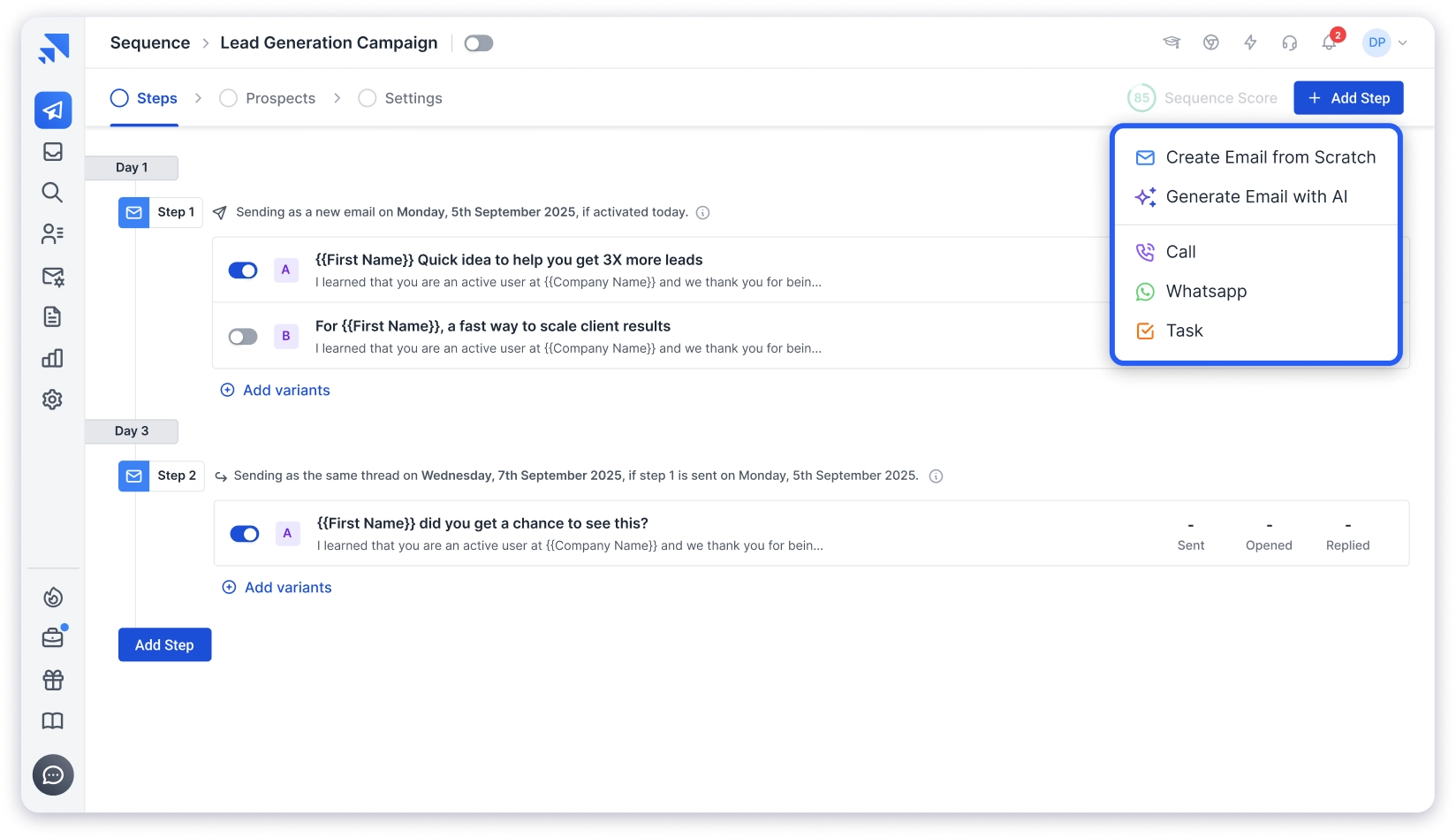
If you’re sending emails for business, it’s worth checking out. You can sign up for free and send 100 emails to see the difference. No credit card needed.
Setting up Verizon email in 2026 is confusing because of the migration to AOL that happened years ago. But once you know that your @verizon.net email now runs on AOL/Yahoo servers, the setup becomes simple.
Here’s the quick recap:
- Incoming mail (IMAP): imap.aol.com, port 993, SSL
- Incoming mail (POP3): pop.verizon.net, port 995, SSL
- Outgoing mail (SMTP): smtp.verizon.net, port 465, SSL
- Always use an app password, not your regular password
- Port 587 with STARTTLS works as a fallback if 465 is blocked
- Webmail access is always available at mail.aol.com
If you followed this guide and your email is working, bookmark this page. Verizon email settings have a habit of “breaking” every time AOL updates something on their end, and you’ll want these verified settings handy for next time.
Frequently Asked Questions
1. What Are the Correct IMAP Settings for Verizon Email?
The correct IMAP settings for Verizon email are: incoming server imap.aol.com, port 993, with SSL encryption. Your username is your full @verizon.net email address, and you need to use an app password instead of your regular password. These settings work because Verizon email was migrated to AOL’s servers in 2017.
2. Why Did Verizon Email Switch to AOL?
Verizon decided to exit the email business in 2017 and transferred all @verizon.net accounts to AOL’s platform. AOL, which is owned by Yahoo, now manages the servers, storage, and security for all existing Verizon email accounts. Your @verizon.net address still works, it just runs on AOL/Yahoo infrastructure behind the scenes.
3. Do I Need an App Password for Verizon Email?
Yes. AOL requires app-specific passwords for any third-party email client, including Outlook, iPhone Mail, Android Gmail, Thunderbird, and Mac Mail.
You can generate one from your AOL Account Security page at login.aol.com/account/security. Your regular password only works when logging in directly through the AOL website or the AOL app.
4. Can I Still Create a New Verizon.net Email Account?
No. Verizon stopped accepting new email signups when they retired the service. Only existing @verizon.net accounts that were migrated to AOL are still active.
If you need a new email address, you’ll need to create one through Gmail, Outlook, AOL, or another provider.
5. What Is the Difference Between POP3 and IMAP for Verizon Email?
IMAP syncs your email across all devices. If you read or delete an email on your phone, the change shows on your laptop too. POP3 downloads emails to one device only, and changes don’t sync back.
For most people, IMAP is the better choice. The main exception is Gmail, which only supports POP when adding external email accounts like Verizon.
6. Why Is My Verizon Email Not Working in Outlook?
The most common causes are: using your regular password instead of an app password, Outlook auto-detecting Yahoo instead of letting you enter settings manually, or using the New Outlook app which has known compatibility issues with AOL-based accounts.
Try generating a fresh app password, setting up the account manually with IMAP, or switching to Classic Outlook if the newer version keeps causing problems.